

Anti-Piracy Monitoring Only Console Guide
This Anti-Piracy module enables content rights owners and content distributors to monitor the web for unauthorized distribution of their media assets, manage infringing URLs, and maintain a whitelist information, all from a single, unified console.
The Anti-Piracy service is organized into four main areas accessible via tabs at the top of the screen:
- Dashboard — A centralized, real-time overview of piracy activity across all monitored assets, featuring graphical insights, and key performance metrics for quick analysis and decision-making.
- Asset Details — Register and manage assets for monitoring by adding content metadata to enable accurate tracking and enforcement.
- Infringing URLs — View, validate, and export a list of piracy links detected by the system for further action and reporting.
- Whitelist Management — Manage trusted domains, partner platforms, and approved external websites to prevent false positives during monitoring.
1 Asset Details
Section titled “1 Asset Details”The Asset Details tab allows you to register and manage the content assets you want the system to monitor for piracy.
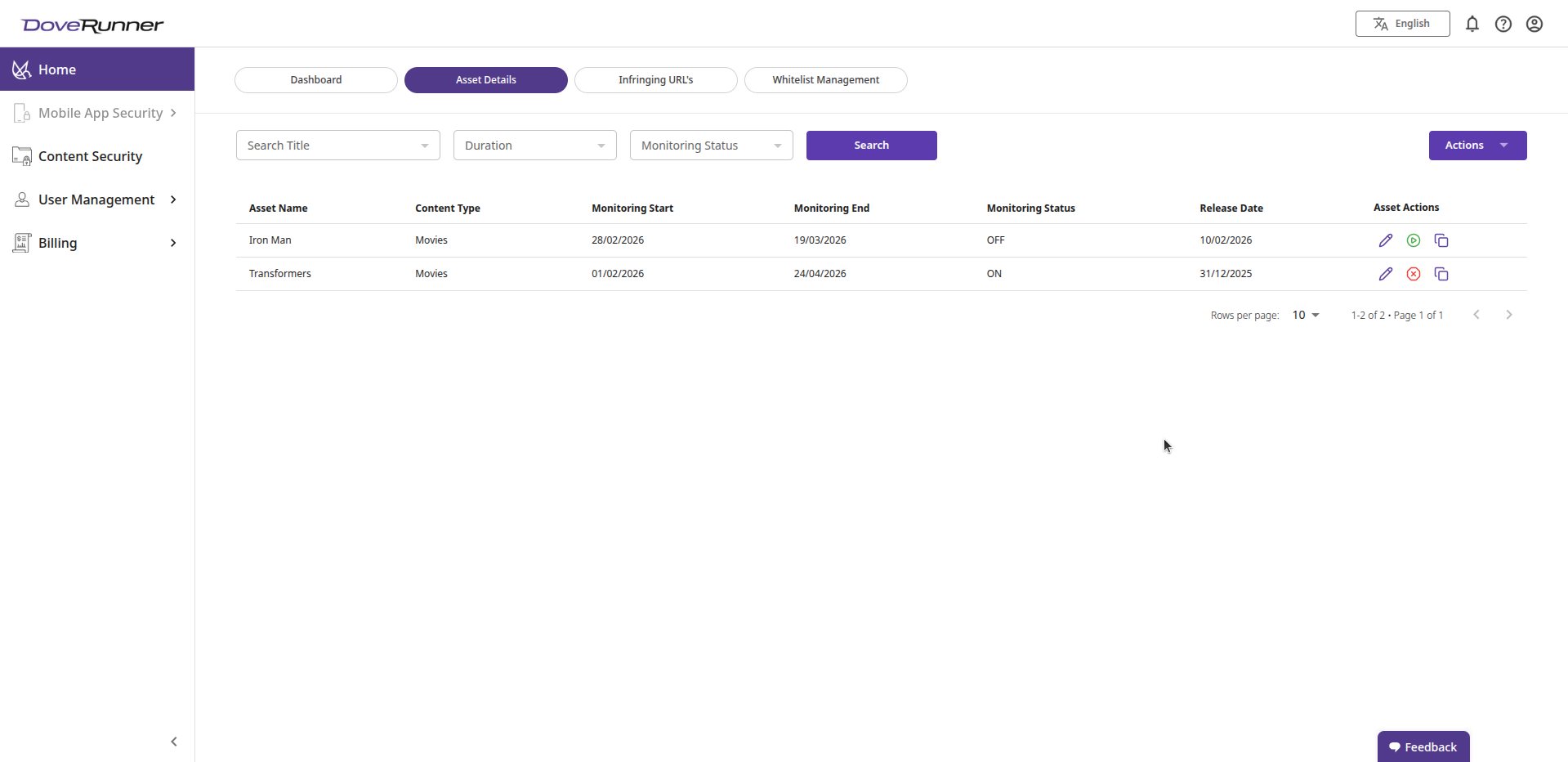
Each asset added to the platform is displayed in a structured table view, providing clear visibility into its monitoring configuration and current monitoring status.
Asset Table Columns
Section titled “Asset Table Columns”| Column | Description | Mandatory Field | Example |
|---|---|---|---|
| Asset Name | The official title of the content being monitored. | Y | Conjuring |
| Copyright Owner Names | Name(s) of the legal copyright holder(s). Multiple entries can be added individually. | Y | Warner Bros Entertainment |
| Original Language | The original production language of the content. | Y | English |
| Content Language | The primary language in which the content is available. | N | Hindi |
| Region | The geographical region where monitoring rights apply. | Y | India |
| Exclusive Countries | Countries where exclusive rights are held for this content. | N | India, UAE |
| Content Type | The classification of the asset (e.g., Movies, Anime, Music, Sports, TV Series). | Y | Movie |
| Official URL | The authorized streaming or official webpage link of the content. | Y | https://officialsite.com/conjuring |
| IMDb ID | The IMDb identifier associated with the asset. | N | tt1457767 |
| Release Date | The official public release date of the content. | Y | 19/07/2013 |
| Rights Expiration Date | The date on which monitoring or distribution rights expire. | Y | 31/12/2026 |
| Monitoring Start Date & Time | The date and time from which piracy monitoring becomes active. | Y | 01/01/2025 12:00 AM |
| Monitoring End Date & Time | The scheduled date and time on which monitoring will conclude. | Y | 31/12/2025 11:59 PM |
| OTT Broadcast Release Date & Time | The date and time when the content was first broadcast on OTT platforms. | N | 01/02/2025 08:00 PM |
| OTT Release Date & Time | The official OTT platform release date and time. | N | 05/02/2025 12:00 AM |
1.2 Registering an Asset
Section titled “1.2 Registering an Asset”flowchart LR A(["Click Actions"]):::step --> B(["Select Register Asset"]):::step --> C(["Open Monitoring Only VOD tab"]):::step --> D(["Fill in the required fields"]):::step --> E(["Click Register Asset"]):::step --> F(["Asset appears in the table"]):::step classDef step fill:#E8F4FD,stroke:#2A7DB1,stroke-width:2px,color:#0B2E47,rx:10,ry:10
- Click the Actions dropdown in the top-right corner of the Asset Details tab.
- Select Register Asset from the dropdown.
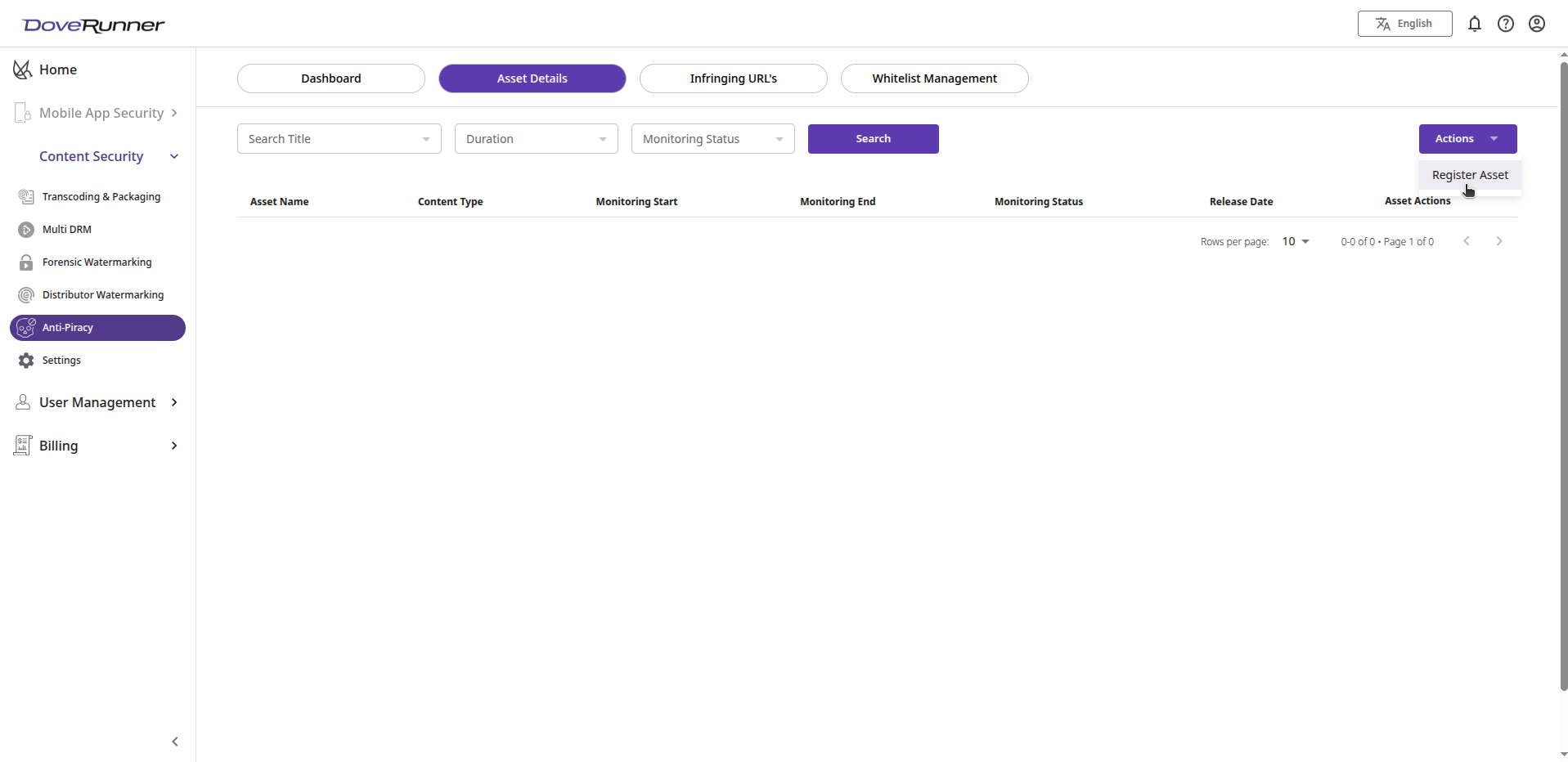
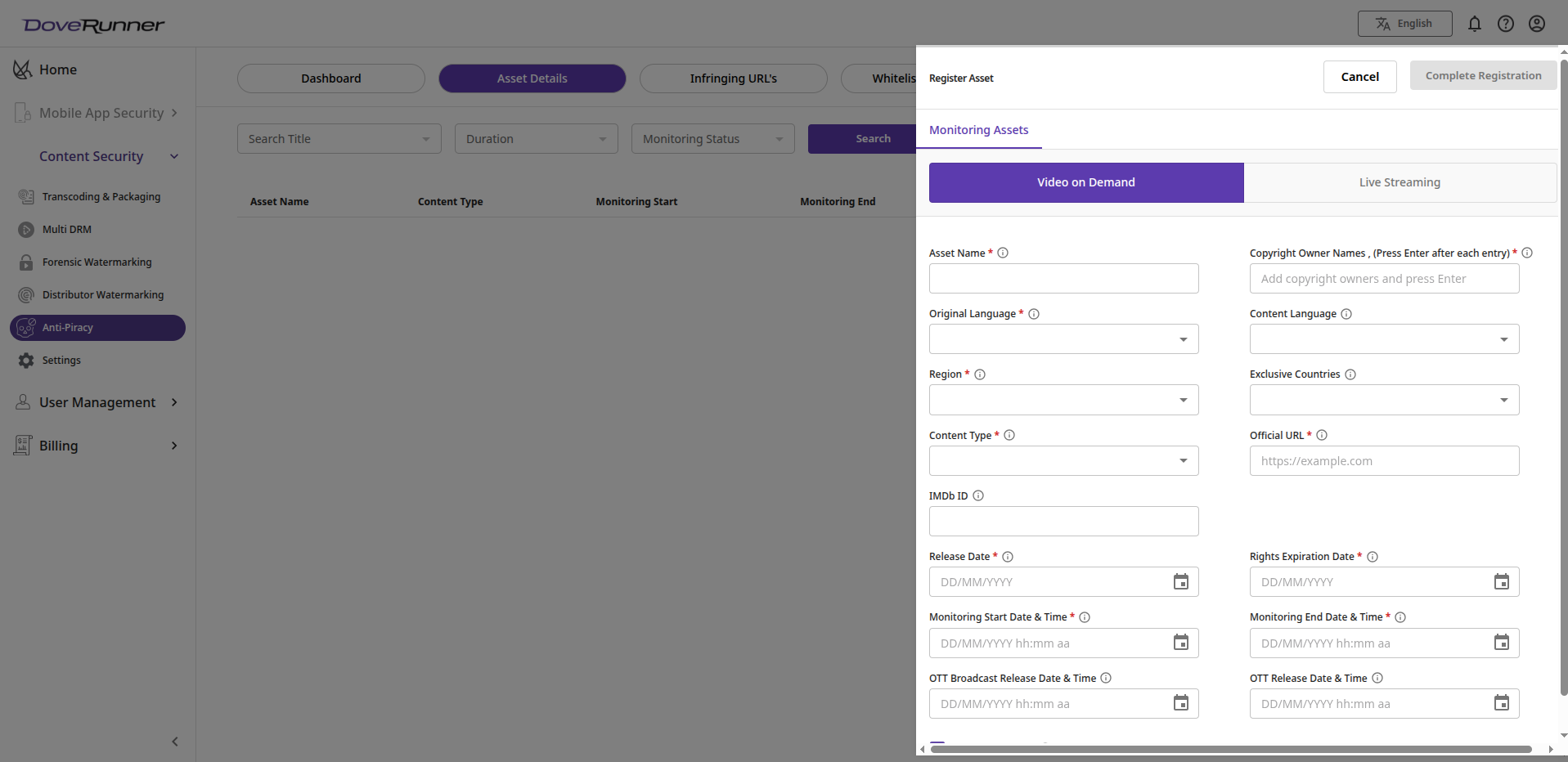
- The registration form opens. Navigate to the Monitoring Only — VOD tab.
-
Fill in all required fields. The following date validation rules apply:
Rule Constraint Rights Expiration Date Cannot be before the Release Date. Monitoring Start Date Cannot be before the Release Date. Monitoring End Date Cannot be before the Monitoring Start Date, or after the Rights Expiration Date. OTT Release Dates Cannot be before the Release Date, or after the Rights Expiration Date. -
Once all data is entered and valid, click Register Asset.
-
The asset appears in the asset table showing: Asset Name, Content Type, Monitoring Start, Monitoring End, Monitoring Status, Release Date, and Asset Actions.
1.3 Editing an Asset
Section titled “1.3 Editing an Asset”- Click the Pencil (Edit) icon in the Asset Actions column for the asset you want to modify.

- The edit form opens with current details pre-populated.
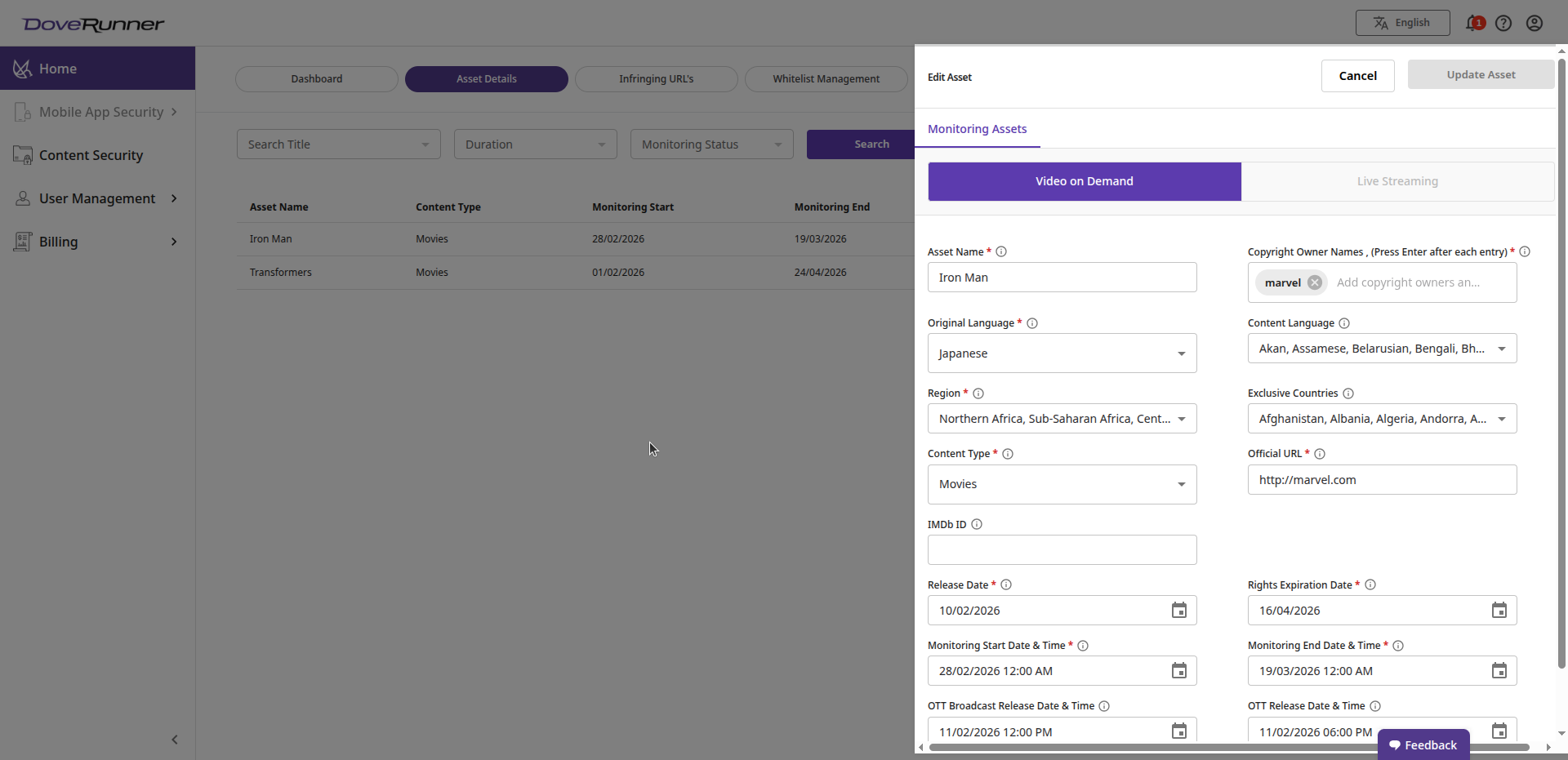
- Make the desired changes and click Update Asset.
1.4 Stop Monitoring
Section titled “1.4 Stop Monitoring”- Click the Stop icon (circled X, centre icon in Asset Actions) for the relevant asset.

- Monitoring status is instantly set to OFF.
1.5 Start Monitoring
Section titled “1.5 Start Monitoring”- Click the Start icon (circled play button, centre icon in Asset Actions) for the relevant asset.

- A pop up appears to select the Monitoring end date, after choosing the date press START MONITORING button
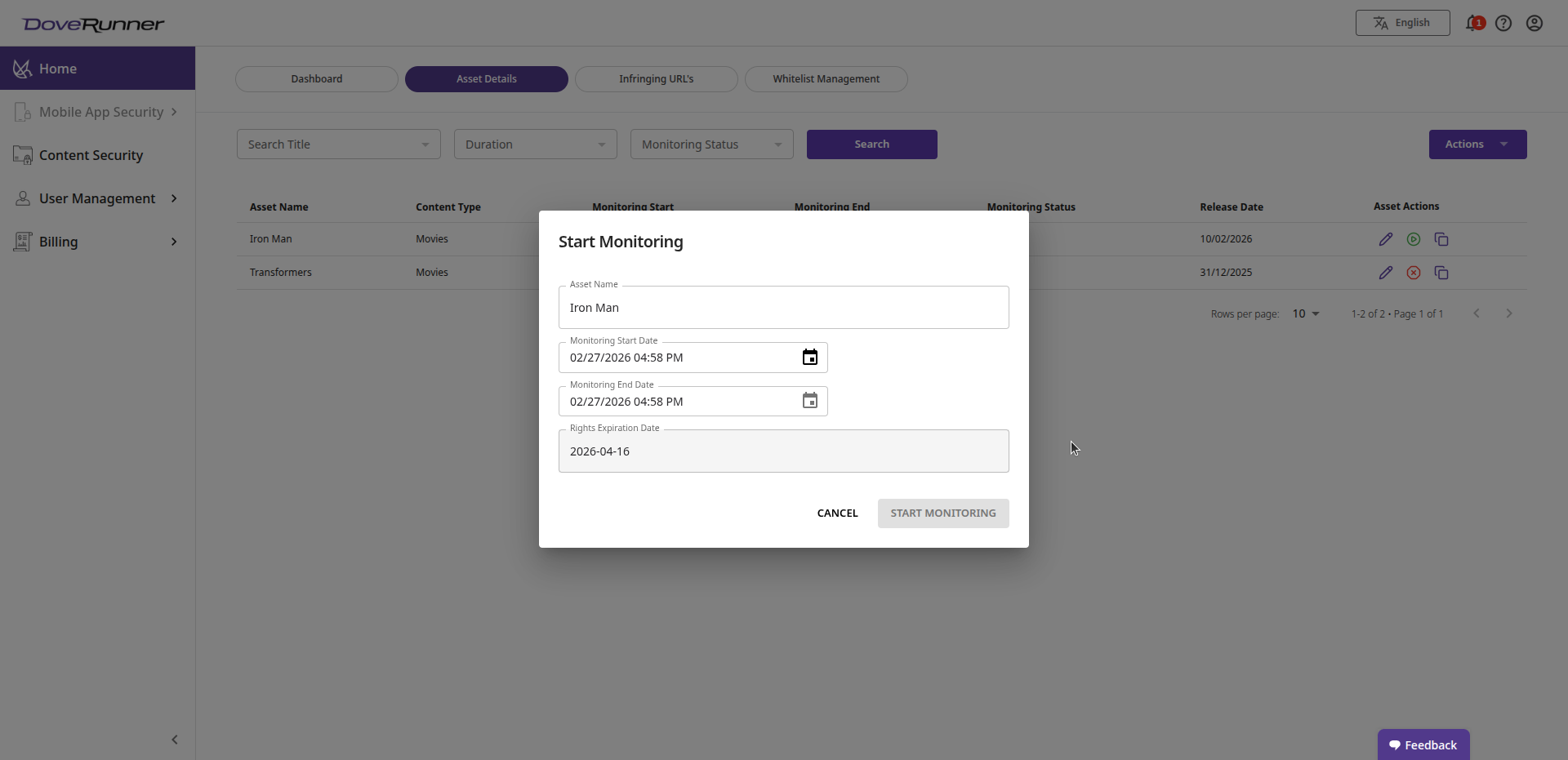
- Monitoring status is instantly set to ON.
1.6 Cloning an Asset
Section titled “1.6 Cloning an Asset”- Click the Clone icon (third icon in Asset Actions).

- A registration form opens pre-filled with the original asset’s settings — except Asset Name and Official URL, which must be unique.
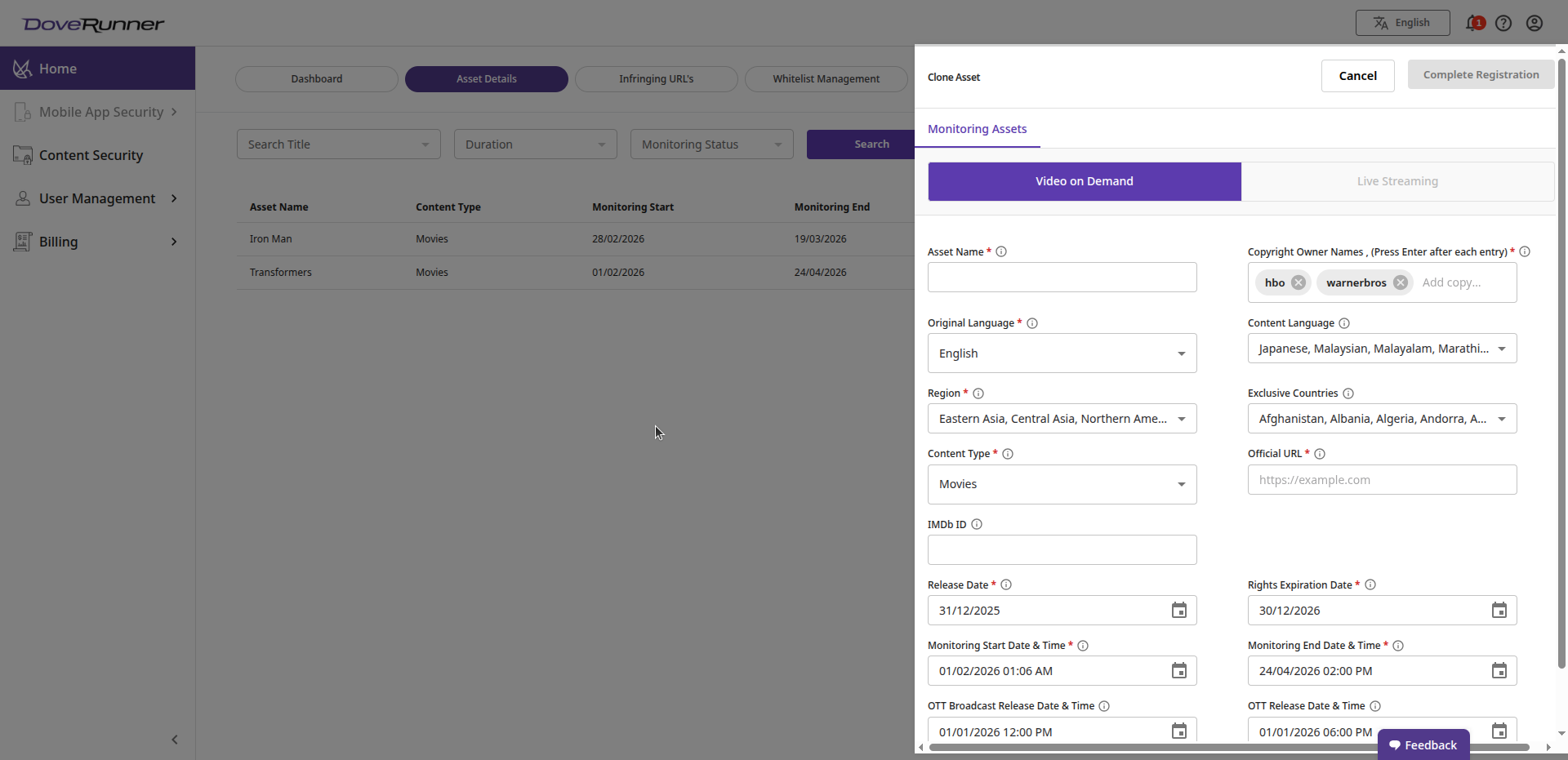
- Enter the new Asset Name and Official URL, adjust any other fields, and click Register Asset.
1.7 Filtering Assets
Section titled “1.7 Filtering Assets”Use the filter controls above the asset table to narrow the displayed results, then click Search:
| Filter | Description |
|---|---|
| Search Title | Filter assets by name. |
| Duration | Filter by a specific monitoring duration range. |
| Monitoring Status | Filter by ON or OFF status. |
1.8 Pagination
Section titled “1.8 Pagination”Use the Rows per page dropdown at the bottom of the table to set how many assets are shown per page. Use the arrow buttons to navigate between pages (e.g., 1–2 of 2 • Page 1 of 1).
2 Infringing URLs
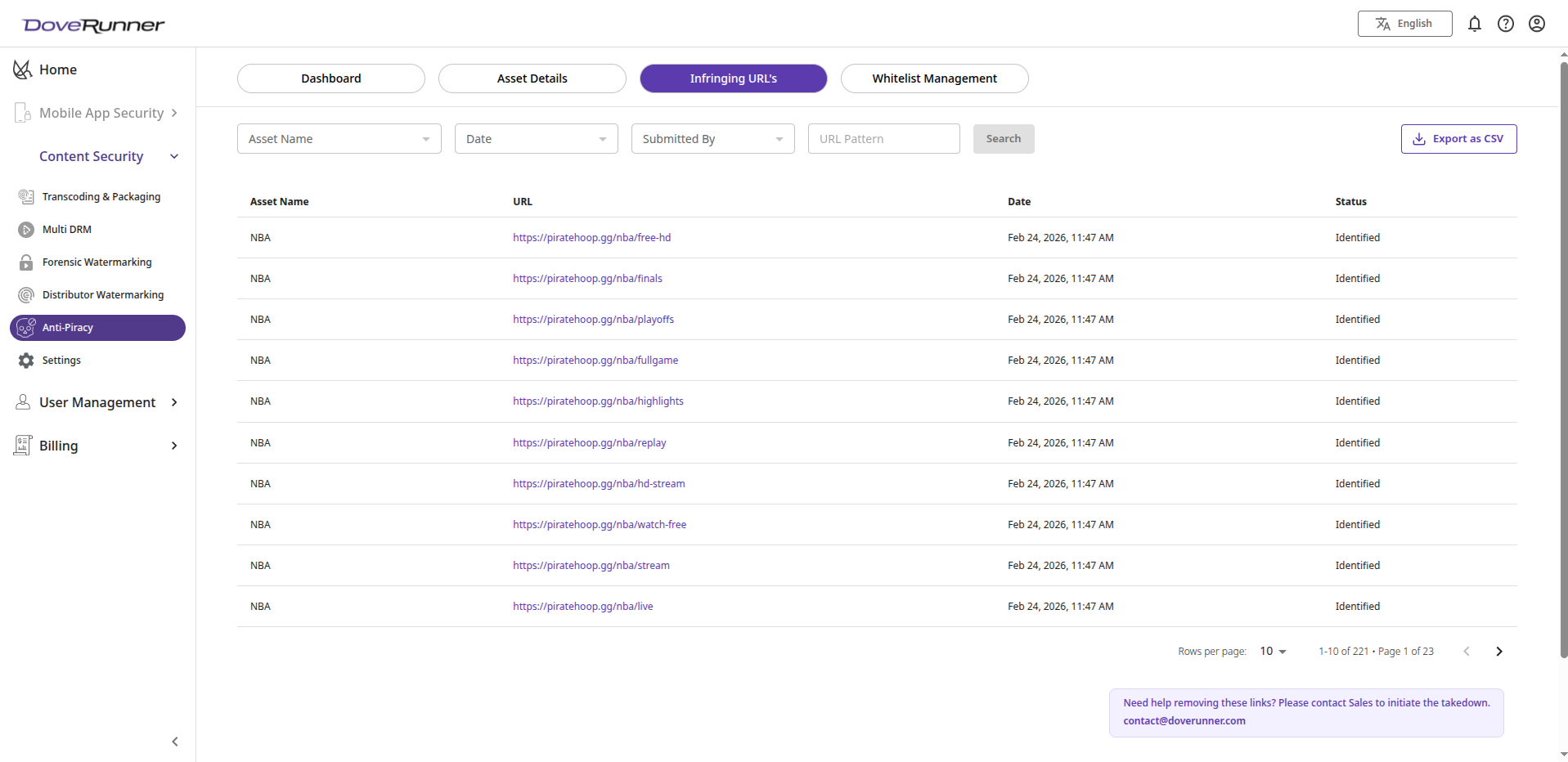
Section titled “2 Infringing URLs”The Infringing URLs tab displays piracy links identified by the DoveRunner system, presented in a searchable, filterable table.
Infringing URL Table Columns
Section titled “Infringing URL Table Columns”| Column | Description |
|---|---|
| Asset Name | The monitored asset associated with the infringing URL. |
| URL | The full URL of the identified piracy link. |
| Date | The date and time the URL was detected or uploaded. |
| Status | The current status of the URL (e.g., Identified). |
2.2 Filtering Infringing URLs
Section titled “2.2 Filtering Infringing URLs”Use the filter controls at the top of the table, then click Search:
| Filter | Description |
|---|---|
| Asset Name | Filter by the associated monitored asset. |
| Date | Filter by the detection date range. |
| Submitted By | Filter by the entity or process that submitted the URL. |
| URL Pattern | Search for URLs containing a specific pattern or substring. |
2.3 Exporting Infringing URLs
Section titled “2.3 Exporting Infringing URLs”- Apply any desired filters to narrow the list.
- Click the Export as CSV button in the top-right corner.
- A CSV file containing the filtered URL data downloads to your device.
2.4 Pagination
Section titled “2.4 Pagination”Use the Rows per page dropdown at the bottom of the table and the arrow buttons to navigate between pages.
3 Whitelist Management
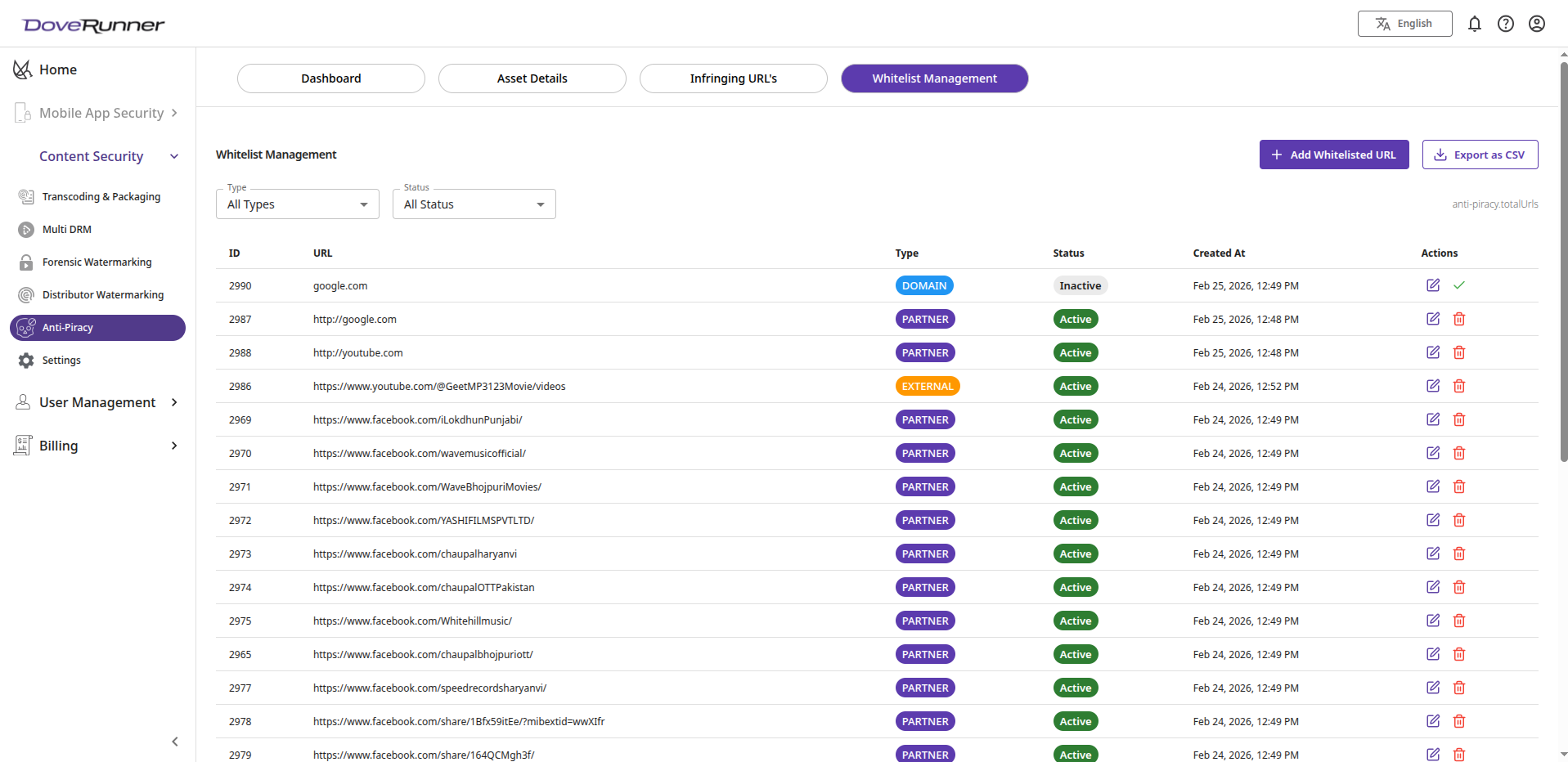
Section titled “3 Whitelist Management”The Whitelist Management tab lets you define URLs and domains that are legitimate and should not be flagged as infringing — such as authorized partner channels, licensed platforms, and external websites with rights to your content.
Whitelist Table Columns
Section titled “Whitelist Table Columns”| Column | Values | Description |
|---|---|---|
| ID | Numeric | Auto-generated unique identifier for the entry. |
| URL | Full URL or domain | The whitelisted URL or domain. |
| Type | DOMAIN / PARTNER / EXTERNAL | Category of the whitelisted entry. |
| Status | Active / Inactive | Whether the entry is currently enforced. |
| Created At | Timestamp | Date and time the entry was created. |
| Actions | Edit / Delete icons | Edit or disable/enable the entry. |
URL Types
Section titled “URL Types”| Type | Description | Example |
|---|---|---|
| PARTNER | Officially licensed distribution channels or authorized social media pages. | https://www.facebook.com/wavemusicofficial |
| DOMAIN | Trusted root domains whose all sub-pages should be excluded. Enter without http/https. | google.com, *.bola.com |
| EXTERNAL | Licensed third-party external websites that legally host your content. | https://internet-television.net |
3.2 Adding Whitelisted URLs — Manual Entry
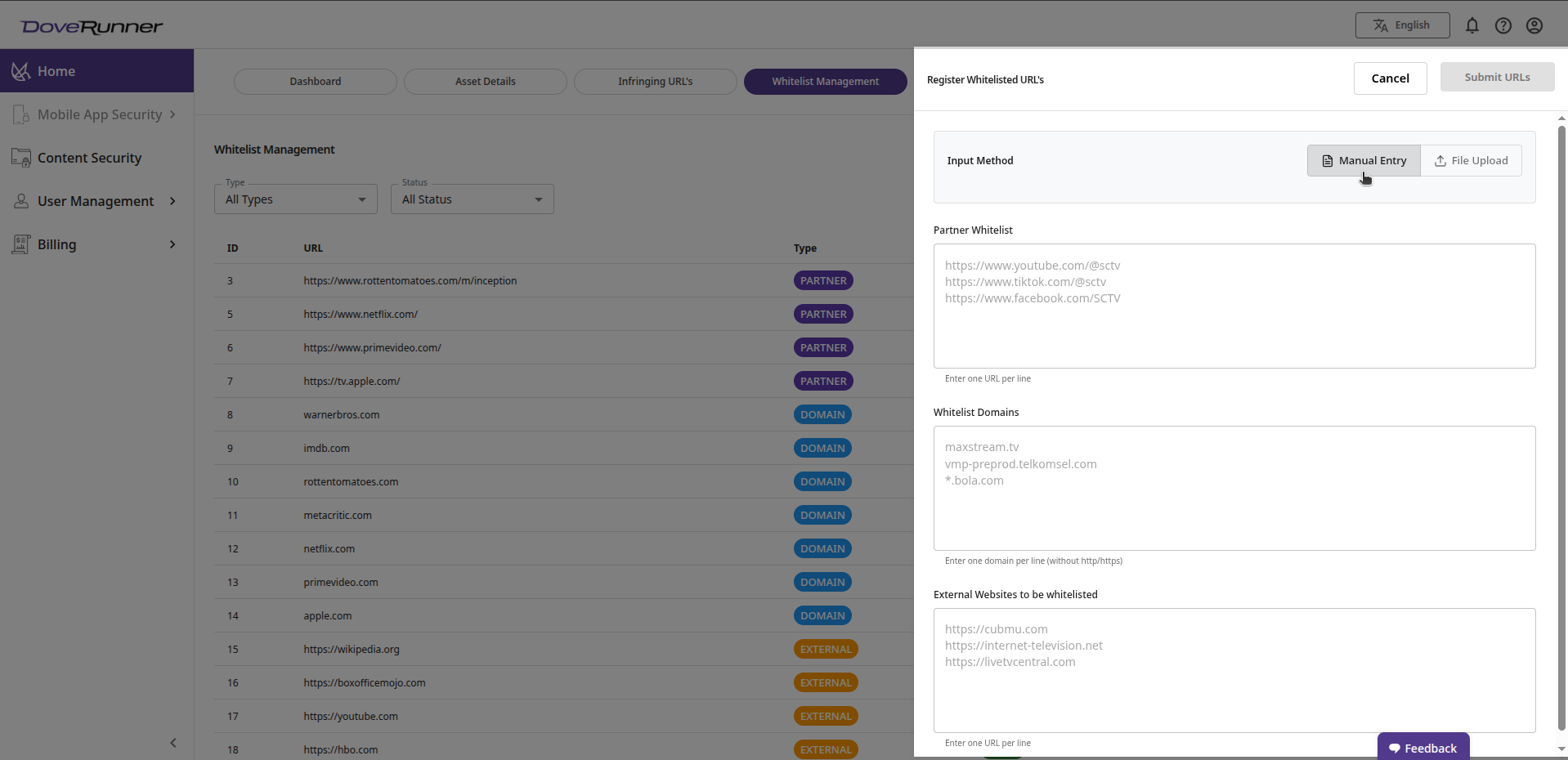
Section titled “3.2 Adding Whitelisted URLs — Manual Entry”- Click the + Add Whitelisted URL button in the top-right corner.
- In the panel that opens, ensure the Manual Entry tab is selected.
-
Enter your URLs in the appropriate fields:
Field Format Example Partner Whitelist One full URL per line https://www.youtube.com/@sctvWhitelist Domains One domain per line (no http/https)maxstream.tvExternal Websites to be Whitelisted One full URL per line https://cubmu.com -
Click Submit URLs to save all entries.
3.2.2 Adding Whitelisted URLs — File Upload
Section titled “3.2.2 Adding Whitelisted URLs — File Upload”- Click the + Add Whitelisted URL button and select the File Upload tab.
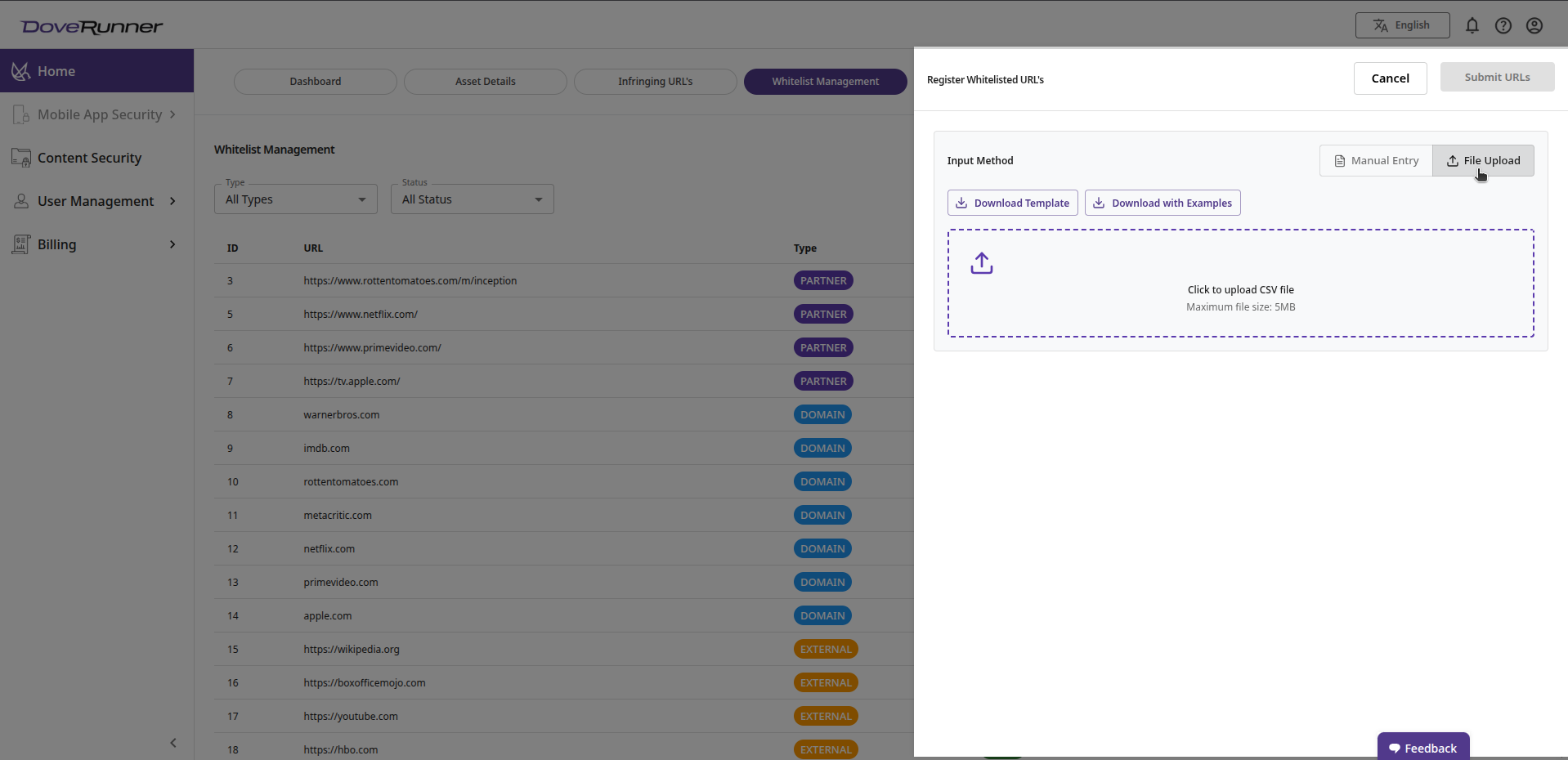
- Download the provided template or template with examples to ensure your file is in the correct format.
- Populate the template with your whitelist data and save it.
- Upload the completed file using the file upload control.
- Click Submit URLs to process and save the uploaded entries.
3.3 Editing a Whitelisted Entry
Section titled “3.3 Editing a Whitelisted Entry”- Click the Edit (Pencil) icon in the Actions column next to the entry to modify.
- Update the URL or other details as needed.
- Confirm the changes to save.
3.4 Disabling and Re-enabling Entries
Section titled “3.4 Disabling and Re-enabling Entries”Rather than permanently deleting a whitelisted entry, you can disable it temporarily:
- To disable: Click the Delete (Trash) icon in the Actions column. The icon changes to a Tick Mark (✓), indicating the entry is now inactive.
- To re-enable: Click the Tick Mark icon to restore the entry to Active status.
3.5 Filtering Whitelist Entries
Section titled “3.5 Filtering Whitelist Entries”Use the filter dropdowns above the table to narrow results:
| Filter | Options |
|---|---|
| Type | All Types / DOMAIN / PARTNER / EXTERNAL |
| Status | All Status / Active / Inactive |
3.6 Exporting Whitelist Data
Section titled “3.6 Exporting Whitelist Data”Click the Export as CSV button in the top-right corner to download all currently displayed whitelist entries as a CSV file.
4 Dashboard
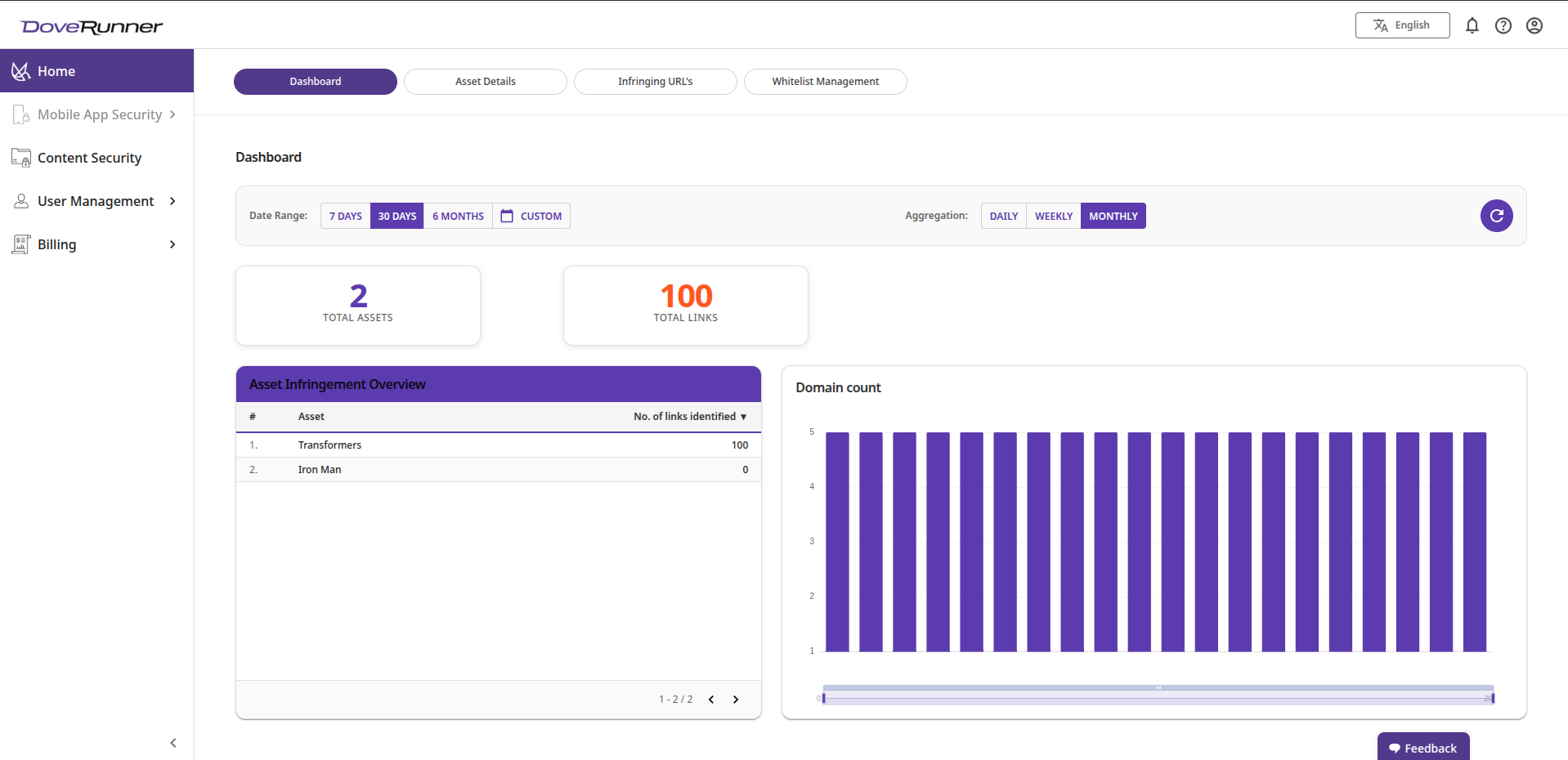
Section titled “4 Dashboard”The Dashboard tab provides a visual summary of anti-piracy activity across all monitored assets — consolidating data from Asset Details and Infringing URLs into at-a-glance metrics and charts.
Date Range and Aggregation Controls
Section titled “Date Range and Aggregation Controls”| Control | Description |
|---|---|
| 7 Days | Show data for the past 7 days. |
| 30 Days | Show data for the past 30 days (default). |
| 6 Months | Show data for the past 6 months. |
| Custom | Select a custom date range via calendar picker. |
| Daily | Break down charts by individual days. |
| Weekly | Break down charts by week. |
| Monthly | Break down charts by month (default). |
| Refresh | Manually refresh the dashboard data. |
Summary Metrics
Section titled “Summary Metrics”| Metric | Color | Description |
|---|---|---|
| Total Assets | Purple | Total number of content assets registered for monitoring. |
| Total Links | Orange | Total infringing URLs identified across all assets within the selected date range. |
Asset Infringement Overview
Section titled “Asset Infringement Overview”The Asset Infringement Overview table ranks your monitored assets by the number of infringing links identified. For each asset it shows:
- Rank (#)
- Asset Name
- Number of Links Identified
Use the pagination arrows at the bottom of the table to browse all assets. This view helps prioritize which assets require the most urgent anti-piracy action.
Domain Count Chart
Section titled “Domain Count Chart”The Domain Count bar chart visualizes the distribution of infringing URLs by domain. Each bar represents a unique domain; bar height indicates the number of infringing links found on that domain within the selected date range. A horizontal scroll bar allows browsing when many domains are present.